What is DocuSign?
DocuSign is the global standard for eSignature, and works with IP and most of the carriers that we use. It allows us to securely collect information from our clients and sign securities and living trust applications (some life insurance, as well) from any device and any location.
Current List of Firms that Accept DocuSign
- Innovation Partners, LLC.
- American Funds
- Jackson National
- Lincoln Life Insurance
- Heritage Living Trust
- Black Rock
- Allianz
- Security Benefit
- Investors Preferred
- Fidelity
- A9
- Community National Bank
Purchasing DocuSign
-
Purchase the DocuSign Standard Edition. This version has everything we need, and our AdvisorFirst pre-made templates include features that aren't included in the Standard Edition!
-
Pay annual as it is much cheaper and use this discount code
WEBNA4190to get 20% off (-\(60) for the first year only. Your cost should be **\)240**. -
Make sure to use your IP email address to sign-up.

Setting-Up DocuSign
- Go through all of the settings and preferences and set the options to your liking.
- I recommend uploading a professional profile photo as your clients will see this.
- Go to
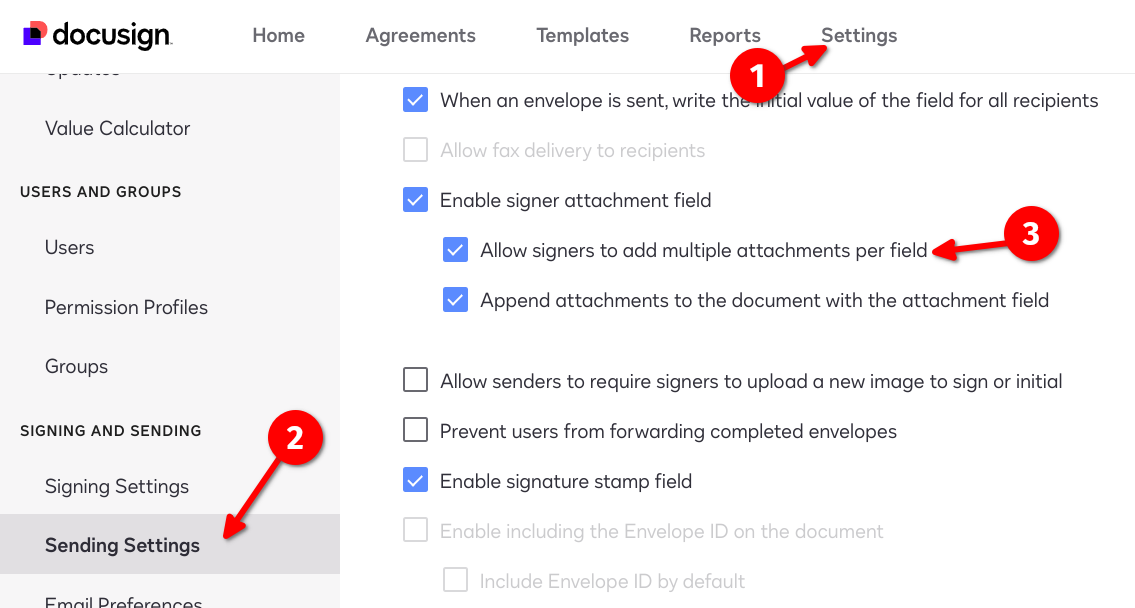
Sending Settingsand scroll to the bottom and checkEnable template upload.

Using DocuSign
Accessing DocuSign
You can access DocuSign three ways:
- Direct URL: docusign.com. Make sure to add this URL to your browser bookmarks bar for quick access.
- Android app.
- Install the DocuSign Chrome extension.
Collecting Client Data and Filling out an App
Watch Client Onboarding Pt 2 - Docusign (2023-09) VIDEO
Watch Video: Alt-Tab Trick to speed up Copy-N-Paste VIDEO
Watch Video: how to duplicate an Application in DocuSign VIDEO
Using Templates and Direct-to-IP-New-Business
Watch the walktrough of using templates and auto-send to New Business VIDEO
Watch How to Create a Template VIDEO
You can import pre-made templates into your DocuSign account!
1. First, log into your DocuSign and go to Settings / Sending Settings and scroll to the bottom and check Enable template upload.
- Go to the Docusign Templage folder in Proton Drive and download (right-click) the template (.json file) you wish to import.
- Go to DocuSign / Templates and click the down-arrow on the big yellow "NEW" button in the upper-left and select Upload Template. Some users have noted that they have to create a "dummy" template first to eneale uploading templates.
- Upload the .json template file you downloaded in step 2 and it will appear in your Templates gallery.
- Create folders as shown below and move your uploaded templates in to the appropriate folder. No templates should be "folder-less".

- Our securties and living trust templates are designed that after you, the Advisor sign it, it will automatically be forwarded to IP!

Frequenly Asked Questions
Client gave me her incorrect email address after DocuSign already emailed the application (or other incorrect data). Is there an easy fix?
Click the "Correct" button on the envelope and change the address, then re-send.
Can I Re-Use An Already-Completed Envelope?
Yes! Sometimes you'll want to re-use an envelope that has already been completed. For example, maybe you completed an Traditional IRA for a client and now you want to do a Roth IRA. All of the information is the same, except the check-boxes for Traditional/Roth and the amount. Or, maybe your doing UTMAs for three children with the same custodian. Again, the only information that is different among the three apps is the child's name, DOB and SSN, and possibly the investment amount.
Note: only use this feature if you are changing a small amount of data. If the changes are numerous you risk forgetting to change something from the original that should have been changed.
First you need to enable this feaure by going into Docusign / Settings / Sender Settings / Enable envelope copy with field data and checking the box.

Find the original envelope and in the dropdown select Copy with Field Data. This will create a new envelope with the original data retained. Make your edits and send.
